
Why does your browser warn you when visiting a site with “SSL certificate problem” or “SSL connection error”? These messages are more than just annoyances. Once they appear, they reduce user confidence, hurt search rankings, and signal underlying trust issues.
Understanding what is an SSL error means recognising that, behind each message, lies a broken secure connection mechanism.
In this article, we’ll look at the frequent SSL certificate errors that show up on Hosting for WordPress or within dashboards, and we’ll offer a universal fix for each. Additionally, we will guide you on how the FlexiCloud panel can help you solve these issues to keep your site secure and reliable.
What is an SSL Certificate?
An SSL certificate is a digital file issued by a trusted authority that verifies your website’s identity and enables encrypted connections between the browser and server.
How Does the SSL Certificate Work?
Your site’s SSL certificate works as a trust badge and a lock for data traffic. Behind that simple symbol is a detailed process that ensures your browser and the web server connect securely.
- Your browser connects to the server and requests a secure session over HTTPS.
- The server sends its certificate (which includes its public key). Next, your browser checks validity, issuer, expiration, and trust path.
- Once validated, both sides compute a symmetric encryption key (session key) from the public-key exchange.
- The server acknowledges the setup, and then all data sent between the browser and the server is encrypted using that session key.
If any of these steps fail — for example, due to a revoked certificate or time mismatch, you end up with an SSL connection error or other certificate problem. With that mental model in place, you’ll be ready for the action on how to fix these SSL certificate errors as soon as possible.
Impact of SSL Errors (Why Fix Them?)
When a visitor lands on your site and sees a warning – an SSL connection error, trust goes out the window. A visible security alert halts engagement, damages your brand’s credibility, and often drives traffic away.
Search engines notice too: sites with insecure connections or broken certificates risk losing ranking, reducing visibility, and lowering long-term growth.
Beyond rankings, failed or mis-configured certificates open up risk of data interception when the SSL connection error” appears, you’re signalling a weak link in security.
Fixing SSL errors isn’t optional; it is mandatory to protect your users, keep browsers happy, boost search performance, and safeguard your reputation.
Common SSL Certificate Errors in Hosting for WordPress and Their Universal Fixes
Here is a list of common SSL certificate error messages you may end up seeing in some websites:
Error 1 — “Your Connection is Not Private”
This SSL connection error message appears when your browser cannot confirm that a website is safe to visit. It means the secure link between the browser and the server failed to verify. It stops users before they reach your page
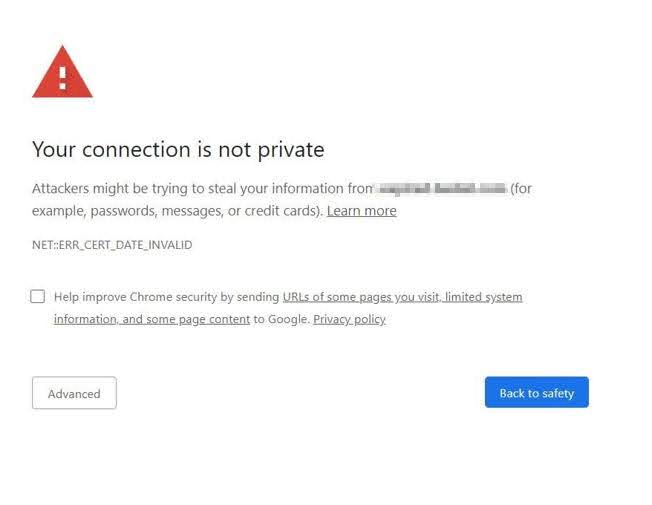
Reasons
- An expired or poorly installed SSL certificate.
- The domain name on the certificate doesn’t match the website address.
- The user’s system clock or date is wrong, so the browser rejects the certificate.
Universal fix
Renew or reinstall the SSL certificate from a trusted provider. Make sure it covers the exact domain in use. Correct the time and date on both your server and your device. Finally, clear the browser cache or cookies before testing again. Once the certificate matches and validates, the warning disappears.
Error 2 — “Mixed Content Warning”
This error message appears when a page loads over HTTPS, but some images or scripts still use HTTP. In that case, your browser marks this as an SSL certificate problem because the page isn’t fully secure. You may end up seeing a broken padlock icon or no padlock at all.
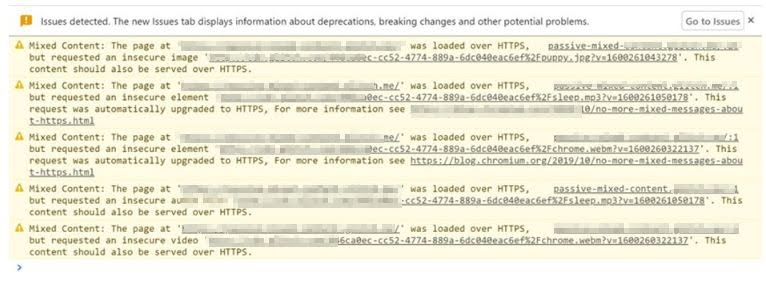
Reasons
- Old links inside the theme, plugins, or content still use “http://”.
- External fonts or scripts load from insecure URLs.
- The server isn’t enforcing HTTPS for every resource.
Universal fix
Search your site for “http://” links and replace them with “https://”. Use your Website’s dashboard to force HTTPS across the site. Update or reinstall plugins that insert mixed links. Reload the page after clearing the cache to confirm all resources now load securely.
Error 3 — “SSL Certificate Expired”
An expired certificate tells browsers your site’s security is no longer valid. The browser then blocks access and displays an SSL connection error until the renewal occurs.
Reasons
- The certificate wasn’t renewed before its end date.
- Automatic renewal failed or wasn’t enabled.
- The hosting account moved, breaking renewal settings.
Universal fix
Renew the SSL certificate immediately through your hosting panel or provider. You can easily do this by opening the SSL/TLS section of your website in the FlexiCloud panel and clicking the Renew Certificate option. Replace the old file on your server and verify that it installs correctly. Always enable auto-renewal if your host supports it. Check expiry reminders monthly so you never miss a renewal window again.
Error 4 — “Too Many Redirects After HTTPS”
It appears when your site keeps switching between HTTP and HTTPS or between www and non-www. The browser gives up after looping too many times. Although it is not always a direct SSL certificate problem, it prevents a stable HTTPS session.
Reasons
- Conflicting redirect rules in .htaccess, plugins, or server settings.
- Website URL settings don’t match the actual domain.
- Cloudflare or CDN rules create duplicate redirects.
Universal fix
Set one preferred domain format and stick to it. Update your Website URL and Site Address to use HTTPS. Remove or merge duplicate redirect rules from plugins and server configs. Then clear caches and cookies before testing again. The site should now load securely in one step.
Error 5 — “Domain Name Mismatch”
This shows up when the certificate belongs to a different domain than the one being accessed. The browser sees it as an SSL certificate problem and refuses the connection.
Reasons
- The certificate covers only www.domain.com, but the site uses domain.com.
- A subdomain isn’t listed in the certificate.
- The site moved to a new domain without reissuing the certificate.
Universal fix
Get a new SSL certificate that includes all domains and subdomains you use. Wildcard or multi-domain certificates work well for this. Install it properly and redirect users to the version your certificate protects. After installation, test your site using an SSL checker to confirm the domain matches.
Why Do SSL Certificate Errors Usually Happen?
SSL certificate errors almost always come down to small setup mistakes rather than serious faults. They appear when your site and server are not speaking the same security language — for example, when a domain points to the wrong server or the time on the system is off.
The table below lists the most common technical causes and how to fix them quickly.
| Cause | What Happens | Result | What You Can Do |
|---|---|---|---|
| DNS is not pointing correctly | The domain still directs traffic to an old or wrong server. | The server doesn’t have your valid certificate, so browsers show a security alert or SSL connection error. | Update your DNS records to the correct IP and wait for them to update across networks. |
| Cloudflare set to Flexible mode | Cloudflare connects to your site over plain HTTP instead of HTTPS. | It breaks the secure chain between Cloudflare and your server, often causing redirect loops. | In Cloudflare, change SSL mode to Full (Strict) and make sure your server has a proper certificate. |
| Duplicate redirects | More than one redirect rule is active — in plugins, .htaccess, or CDN settings. | The browser keeps switching between HTTP and HTTPS until it gives up | Keep only one redirect to HTTPS and remove others. Test with a clean browser. |
| Server time mismatch | The system clock on your server is wrong. | Certificates rely on correct time. If it’s off, the browser may think the certificate has expired. | Set the correct timezone and sync your clock using an online time source. |
| Self-signed certificate | The certificate was created manually instead of being issued by a trusted authority. | Browsers don’t recognise it and show a warning or an SSL certificate problem. | Replace it with a certificate from a recognised authority such as Let’s Encrypt or another CA. |
| Expired certificate | The certificate has passed its end date. | Browsers block the page completely. | Renew the certificate as soon as possible and enable automatic renewal next time. |
| Incomplete certificate chain | The server sends only part of the certificate information. | Some browsers can’t confirm the site’s identity and show a security error. | Reinstall the certificate along with its intermediate or chain files. |
| Incorrect site URLs | Your site settings still use http:// links | The browser treats parts of the page as insecure. | Update all URLs in WordPress or your hosting panel to use https://. |
| Cached SSL state or old browser data | The browser remembers an old or broken certificate | Even after fixing it, users still see the same warning. | Ask users to clear the SSL cache or open the site in private mode. |
SSL Certificate Requirements Checklist (Before You Start Fixing)
We have an important checklist to help you avoid common setup hurdles. This will help you with SSL troubleshooting:
- Check that the domain name resolves to your current server IP. If there’s a mismatch, that means the browser won’t reach the right place. In this situation, opening port 80 helps ensure that certificate validation and redirects run smoothly.
- When using Cloudflare, switch SSL mode to Full (Strict). It will make sure you’re properly encrypted at every stage.
- Check your server’s time and date settings. A wrong clock triggers certificate rejection.
- Conflicting redirect rules can create endless loops, so clearing out duplicates or overlaps helps fix this.
- Make sure your certificate actually covers every hostname your site uses, such as example.com and any subdomains like “www” or “blog”. This is important to avoid a classic SSL certificate problem.
Having all these tips right from the start means you spend less time hunting for obscure errors later.
How to Fix SSL Certificate Error in General?
- Make sure the SSL files on your server are complete – private key, certificate, and chain must all be present.
- Run a quick online SSL certificate test to check expiry, authority, and chain order.
- Enable modern encryption protocols in your server’s configuration.
- Replace any certificate signed by an outdated or untrusted authority.
- Restart your server or reload your web service after editing SSL certificate files.
- Delete leftover configuration files from older certificates to prevent confusion.
- Test your site from multiple browsers and devices to rule out local caching.
- Verify your firewall or security plugin isn’t blocking HTTPS connections.
- When using a reverse proxy, confirm that it correctly passes HTTPS traffic to the origin.
- Keep your operating system and browser updated—outdated trust stores cause SSL warnings.
Common Tools and Commands to Diagnose SSL Certificate Connect Errors
Once an HTTPS connection fails or it starts showing a warning, it’s time to know deeper than just “the certificate has expired”. You can begin by running tools on different scenarios. Here’s a table that lists key tools/commands, what they check, and how you can use them.
| Tool / Command | What it Checks | Example Use |
|---|---|---|
| openSSL s_client -connect host:443 | It connects to the server’s TLS port. Further, it lists the certificate, handshake, and chain. | openSSL s_client -connect example.com:443 |
| curl -v https://host | It runs an HTTPS request (with verbose output) for tracing handshake and connection issues. | Curl -v https://example.com |
| nmap –script SSL-enum-ciphers -p 443 host | It scans and checks which TLS/SSL versions and cipher suites the server supports | nmap –script SSL-enum-ciphers -p 443 example.com |
| SSL Labs Online “SSL Test” | It is a web-based, comprehensive test. It analyzes certificates, protocols, the chain, and the server config. | To check, visit https://www.SSLlabs.com/SSLtest/ |
| testSSL.sh host | It checks the local script that runs many SSL tests: protocol support, weak ciphers, and chain. | ./testSSL.sh example.com |
| SSLyze –regular host:443 | It is a deep scan tool for checking SSL/TLS configurations, known vulnerabilities, and cipher flaws. | SSLyze –regular example.com:443 |
| Browser Dev Tools > Security tab | It lets you check the certificate the browser uses, view mixed content, and redirect loops. | Open browser → inspect element → Security |
| System trust store check | It lets you check if the local OS/browser trusts the certificate’s issuer or CA root. | On Windows/Mac/Linux, inspect trusted certificate stores |
| telnet host 443 or nc -z host 443 | It checks if the server port 443 is reachable at the network level (firewall, routing). | telnet example.com 443 or nc -z example.com 443 |
| dig +trace host or ping host | It verifies the DNS resolution and server reachability before the SSL handshake starts. | dig +trace example.com |
Best Practices to Prevent SSL Connection Errors
You’ll find it annoying to see a browser blocking your site with an “SSL certificate error.” You can prevent many of these issues if you adopt the right practices.
- First, implement automated certificate management so your SSL certificate never expires unnoticed. Forgetting renewal is a common cause of “SSL connection error”.
- Second, keep your TLS configuration strong: disable TLS 1.0/1.1, require TLS 1.2 or TLS 1.3, disable outdated cipher suites—this stops legacy protocol issues.
- Third, verify your certificate chain on each installation—missing intermediate or root certificates lead directly to “SSL certificate problem” messages.
- Fourth, in your stack, build monitoring and alerting. Let the system ping you days ahead of expiry or detect chain issues so you can act before users complain.
- Fifth, carry out regular security audits of SSL settings, redirect rules, HSTS headers and mixed content issues.
- Sixth, make sure your error handling logs handshake failures and doesn’t expose certificate details to end users.
- Seventh, maintain a documentation and procedures folder: when a team member asks “how to fix SSL connection error”, the process is already defined.
- Eighth, use staging testing to validate certificate installs and redirects before deploying to production.
- Ninth, keep backups and recovery paths for certificates and private keys.
- Lastly, align with compliance requirements to reduce risks from a certificate failure. By staying on top of all these areas, you greatly reduce the chances of a crippling SSL Certificate fault.
How to Fix These SSL Certificate Errors Inside the FlexiCloud Panel?
Most SSL errors happen because the certificate has expired, DNS isn’t pointing right, or the browser can’t complete its secure check.
The good news is that you can fix all of this from your FlexiCloud Panel in a few minutes — no technical scripts or server commands needed.
Step-by-Step SSL Fix Flow in FlexiCloud Panel
1.Log in to your FlexiCloud account
Go to your project dashboard and open the application or site that shows an SSL error.
2.Open the SSL Manager
Inside your application settings, look for the SSL Manager tab.
Here you’ll find two main options — Issue Free SSL and Upload Custom SSL.
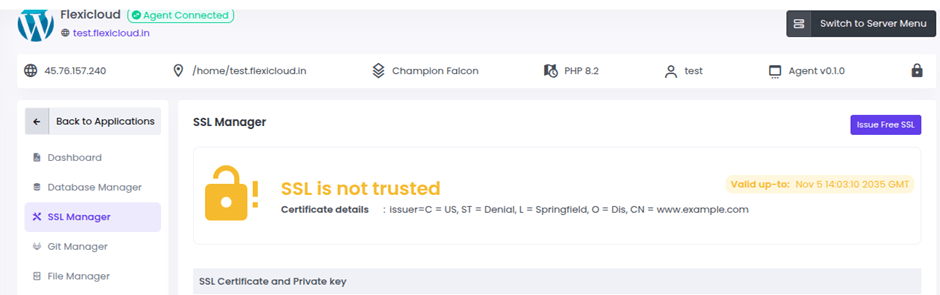
5.For Free SSL (Let’s Encrypt or ZeroSSL)
Click Issue Free SSL to generate or renew a free certificate.
FlexiCloud automatically handles the verification, but the process depends on two conditions:
-Your DNS A record must point to the correct FlexiCloud server IP.
-Port 80 (HTTP) must be open so the verification request can be completed.
If either condition fails, the renewal will not succeed, and you’ll continue to see messages such as “Your connection is not private” or “SSL certificate expired.”
4.For a Custom SSL Certificate
If you purchased your own SSL certificate from another provider, choose Upload Custom SSL in the SSL Manager.
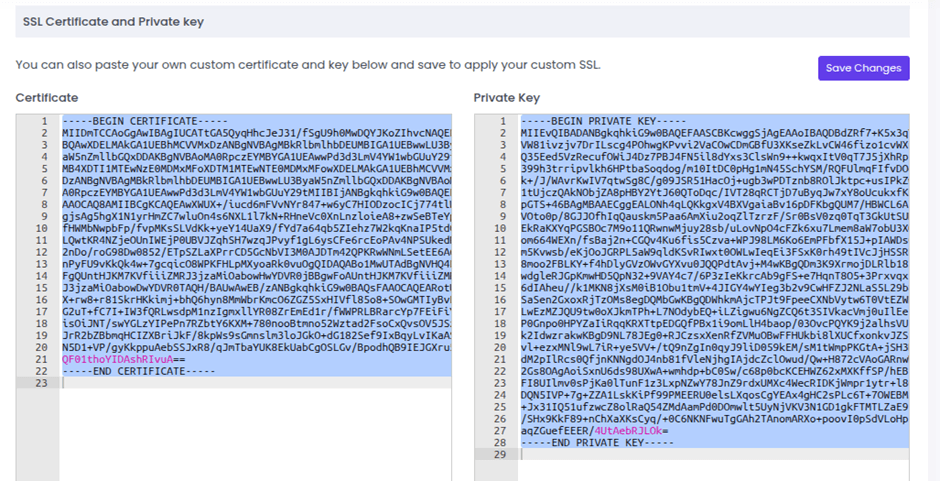
You’ll need to paste your certificate, private key, and CA bundle. Save the changes, and FlexiCloud will apply for the new certificate immediately.
5.Verify the Installation
After renewal or upload, visit your site over https://.
Use an online SSL checker (like SSL Labs Test or SSL Shopper) to confirm that:
- The certificate is valid.
- The full chain is complete.
- The browser no longer shows an SSL connection error or SSL certificate problem.
6.Enable Auto-Renewal
If you’re using Let’s Encrypt or ZeroSSL, keep the auto-renewal toggle turned on.
FlexiCloud will then renew certificates automatically, preventing another “how to fix SSL certificate error” moment.
7. Final Clean-Up
Now clean your browser cache, CDN cache, and any plugin-level cache in WordPress or your CMS. Doing this ultimate step will make sure that browsers load the fresh certificate instead of the old one.
Tip to Remember in SSL Certificate Installation
If the renewal still fails, recheck DNS propagation and firewall rules. Once DNS points to your FlexiCloud server and port 80 is reachable, the automatic process usually succeeds within minutes.
FlexiCloud Panel Advantages for SSL Security
FlexiCloud makes SSL certificate security simple and reliable, removing most of the manual work that used to come with certificate setup and renewal.
Here’s how it helps keep your websites secure without the usual hassles.
- Quick SSL setup: Installing SSL takes only a few clicks in the FlexiCloud Panel. You don’t need to use a terminal or edit files. The system issues and installs the certificate automatically from the SSL Manager section.
- Automatic renewals: Once enabled, FlexiCloud renews your SSL certificates before they expire. You will receive reminders, making you aware of the renewal cycle. This way your site stays secure and it reduces downtime from expired certificates.
- Free SSL for every site: Each FlexiCloud account includes free SSL certificates from trusted providers such as Let’s Encrypt and ZeroSSL. You don’t pay extra for standard encryption or basic site protection.
- Support for custom certificates: If you prefer to use your own purchased SSL, you can upload it directly into the SSL Manager. Paste your certificate, key, and bundle, and FlexiCloud will take care of the rest.
- Automatic HTTPS redirects: With an active SSL, the entire website traffic goes to HTTPS automatically. You don’t have to edit .htaccess or server files — the panel manages that part.
- No command line required: Everything related to SSL happens in the dashboard. Even if you’ve never worked with SSH or command-line tools, you can install, renew, and verify certificates with ease.
- Central control: The SSL dashboard shows every certificate in one place. You can view expiry dates, active domains, and renewal status for multiple websites at once.
- Extra protection built in: The panel includes tools like malware scanning, firewall controls, and automatic updates that work alongside SSL to secure your applications.
- Smooth validation: Port 80 access is maintained during certificate validation, which helps Let’s Encrypt and ZeroSSL verify domains without manual changes.
- Works with major cloud providers: You can manage SSL across servers hosted on DigitalOcean, Linode, Vultr, or Hetzner — all from a single dashboard.
- Site isolation for safety: Each site runs in its own container, meaning one website’s SSL setup never interferes with another’s.
- Real-time status and alerts: You’ll get notifications if a certificate fails or nears expiry, so you can fix issues early.
These features make FlexiCloud a practical choice for anyone who wants strong SSL protection with minimal effort.
FAQs
Could a wrong server time cause SSL errors?
Absolutely. SSL/TLS certificates depend on time validity. If your server’s clock is incorrect, the certificate may appear “not yet valid” or “expired”, causing “SSL connection error” warnings. Syncing the server clock fixes this.
What does “too many redirects after HTTPS” have to do with SSL?
The error itself isn’t a certificate issue, but misconfigured HTTPS redirection can prevent a proper secure connection. It can trigger a browser loop that stops the SSL handshake from completing, resulting indirectly in secure-connection problems.
What happens if I skip renewing the SSL certificate?
If you ignore renewal, browsers will start flagging your site with security warnings, which reduces user trust, affects SEO, and may block access entirely. Users may see messages like “This connection is not private” or “Your connection is not secure”.
When I see “SSL certificate error”, what’s the first thing I should check?
Start by checking your certificate expiry date, domain match (hostname vs certificate), and whether the full certificate chain is installed (including intermediates). Once those basics are correct, you can inspect DNS, redirect rules, and server settings.
I’m on WordPress and using FlexiCloud — how can I tell if SSL is working?
Visit your site using https://. Look for a padlock icon and no warnings. Then log in to FlexiCloud Panel → SSL Manager to check that the certificate is listed and shows a valid expiry.
My SSL Certificate still says “expired,” though I just renewed it in the panel. What did I miss?
One common issue: DNS A-record not yet pointing to your server or port 80 blocked, so the free Let’s Encrypt/ZeroSSL renewal failed. Fix the DNS and firewall, then check again.
I use multiple sub-domains in WordPress — will one SSL cover all of them in FlexiCloud?
If you upload or generate a certificate that covers multiple domains (wildcard or SAN), yes. The Free SSL covers the main domain by default; for all its first-level sub-domains, you may need to upload a custom certificate or ensure wildcard support.
Conclusion
Encountering an SSL certificate error warning isn’t a sign of disaster. It often points to something small and fixable. Whether the issue is expired certificates, redirect loops or mismatched domains, most SSL problems stem from setup mistakes rather than malicious attacks.
With correct DNS entries and the straightforward tools inside the FlexiCloud Panel, you can restore secure HTTPS in minutes.
The result? Your users see the green padlock instead of a warning, your site remains trusted, and you avoid last-minute panic.
In short: With the right setup, you make SSL almost effortless.
Share this Post

